Create and update dynamic QR codes
Create or update individual dynamic QR codes for supported solutions directly through your AI assistant. See supported solutions
Create and update supported dynamic QR codes, check scan analytics, and access form responses, contacts, and more through simple conversations with your AI assistant (such as Claude, ChatGPT, Nano and more) using MCP.
Connect once. Manage QR codes, view analytics, and get answers through AI.
Create and update supported dynamic QR codes, check their performance, and retrieve information from your account through simple prompts.
Create or update individual dynamic QR codes for supported solutions directly through your AI assistant. See supported solutions
Looking for an existing QR code? Ask your AI assistant to show your QR code list so you can quickly identify the one you need.
Want to know how your QR codes are doing? Retrieve available scan analytics through a simple question and let your AI assistant help you understand the results.
Want to review responses from a registration, feedback, or inquiry form? Ask your AI assistant to retrieve the submissions without opening each form individually.
Need contact information? Ask your AI assistant to show contacts available in your QRCodeChimp account, without searching for them manually.
Need to check how your QR codes are organized? View your folder list through your AI assistant to find the folders you are looking for.
About QR code creation and updates: MCP supports individual dynamic QR codes in selected solutions. Bulk creation, changes to QR codes in existing bulk batches, and static QR code creation are not currently available through MCP. For other QR code solutions, use the QRCodeChimp website. View the latest supported solutions.
QRCodeChimp MCP connects your QRCodeChimp account to compatible AI assistants, allowing them to perform supported tasks and access information through everyday conversations.
Instead of switching between your AI assistant and QRCodeChimp for every task, you can work with your QR codes and account information directly from your AI assistant.
MCP stands for Model Context Protocol, a standard that enables AI assistants to connect with external tools and services.
And here is what makes it useful: Supported dynamic QR codes created through MCP are saved directly in your QRCodeChimp account. They are not just QR code images generated in a conversation. You can access and manage them from your QRCodeChimp dashboard.
Not sure where to start? Try these everyday requests and see how QRCodeChimp MCP can help.
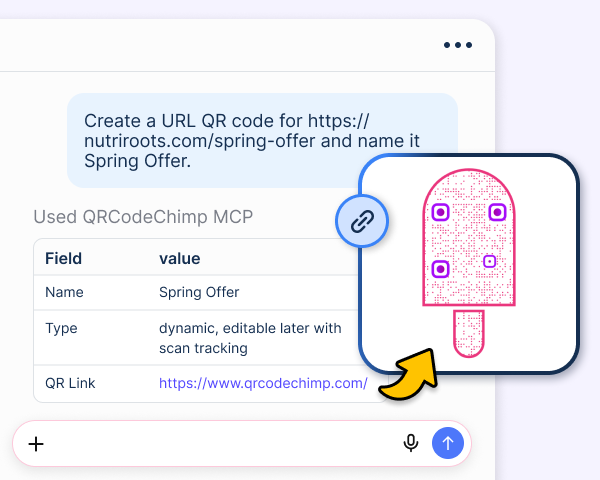
Your Spring Offer QR code now opens the new landing page. The printed QR code stays the same.
Whether you are managing marketing campaigns, collecting leads, or updating business information, QRCodeChimp MCP helps you spend less time navigating between tools.

Ask your AI assistant for QR code scan analytics and review campaign performance without manually looking up each QR code.

Retrieve customer feedback, registrations, or other form responses and ask your AI assistant to help summarize the information.

Access contacts from your QRCodeChimp account through your AI assistant and use the retrieved information to help prepare follow-ups.

Changed your landing page or offer URL? Ask your AI assistant to update a supported individual Dynamic URL QR code. Your existing printed code can stay the same.
Bring QRCodeChimp into the AI tools you already use. Connect your account and start working with supported QR code features through natural-language conversations.

Use Claude to create and update supported dynamic QR codes, view analytics, access form responses, and retrieve contacts from your QRCodeChimp account.
Connect to Claude
Create and update supported dynamic QR codes, check analytics, and retrieve account information through ChatGPT.
Connect to ChatGPTQRCodeChimp MCP currently supports ChatGPT and Claude. Setup requirements may differ by assistant. The Connect links open your QRCodeChimp account, so you may be asked to sign in first.
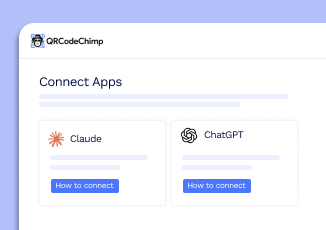
Go to your Dashboard, click Connected Apps in the sidebar, and select a supported AI assistant, such as ChatGPT or Claude.
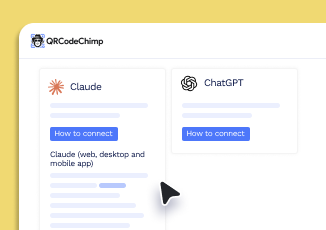
Follow the setup instructions for your selected assistant and complete the required authorization.
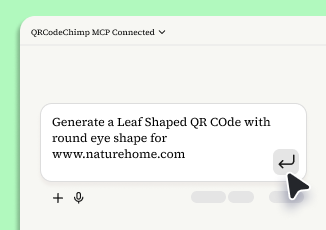
Once connected, simply type your request. Try “Show me my QR codes” or “Check the analytics for my event QR code.”
Your AI assistant can access only the supported features and information available under your active QRCodeChimp plan.
View QR code lists, analytics, folder lists, form responses, and contacts. Create and update QR codes only where supported, within your plan and permissions.
You can review or manage your QRCodeChimp connection using the available controls in your AI assistant. Connection management options may vary.
A QR code MCP server connects a QR code platform to compatible AI assistants using Model Context Protocol. This allows AI assistants to perform supported actions and retrieve account information through natural-language conversations.
QRCodeChimp MCP currently supports ChatGPT and Claude. Additional AI assistants may be supported in the future.
Yes. MCP can create individual dynamic QR codes for supported solutions. They are saved in your QRCodeChimp account and can be accessed through your dashboard. See currently supported solutions.
Yes. MCP can update eligible individual dynamic QR codes in supported solutions. It cannot update QR codes in existing bulk batches. For other QR code solutions, use the QRCodeChimp website where editing is supported.
Yes. You can ask your AI assistant to retrieve analytics available in your QRCodeChimp account. The data and options available depend on your plan and the integration’s supported capabilities.
Yes. QRCodeChimp MCP allows your AI assistant to retrieve form responses and contacts available to your account, subject to your permissions.
You do not need to write code to make everyday requests. Once connected, you can interact with supported QRCodeChimp features using natural language. Initial setup steps may vary depending on the AI assistant.
No. MCP supports only selected operations. Creating and updating QR codes is currently limited to individual dynamic QR codes for supported solutions. Bulk creation, updates to existing bulk batches, and static QR code creation are not supported through MCP. Your plan and permissions also apply. View current capabilities.
Create and update supported dynamic QR codes, retrieve information, and check performance through the AI assistant you already use. Connect your QRCodeChimp account and make everyday QR code tasks simpler.