Google Calendar QR Code Generator
Share a Google Calendar event or public calendar with one scan. People can view the latest details, save the event, or subscribe when these options are available.


QR Code Generator for Google Calendar
Allow people to view your Google Calendar with a single scan
What Is a Google Calendar QR Code?
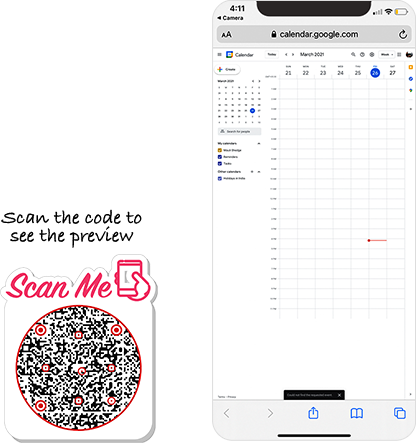
A Google Calendar QR code allows you to share a Google Calendar event or calendar with several users. They can scan the code to open the URL you added and view the event or calendar according to its Google Calendar sharing permissions.
QRCodeChimp converts the Google Calendar URL you enter into a QR code. The QR code does not create, publish, or manage the event or calendar.
How Does a Google Calendar QR Code Work?
First, make sure the Google Calendar event or calendar URL is accessible to the people who will scan the QR code.
Here’s how a Google Calendar QR code works:
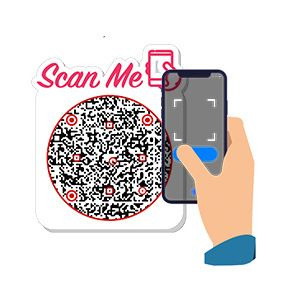
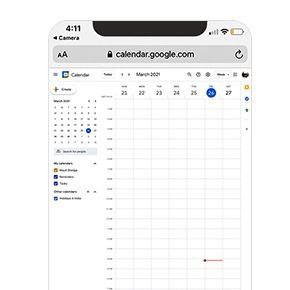
How to Create a Google Calendar QR Code in Three Steps

Benefits of a Google Calendar QR Code
A Google Calendar QR code lets you share your Google Calendar event or public calendar with others. Here’s why you should use a Google Calendar QR code:
- People can view your shared events with a single scan.
- You can share a calendar with your team to ensure everyone is on the same page.
- You can share event and calendar links through offline channels where a clickable URL cannot be used.
- Changes made to the same linked event or calendar appear when someone opens the URL again.
- People may be able to save an event or subscribe to a public calendar, depending on the Google Calendar link you share.
- For a shared calendar, people may view events and eligible tasks according to its access permissions.
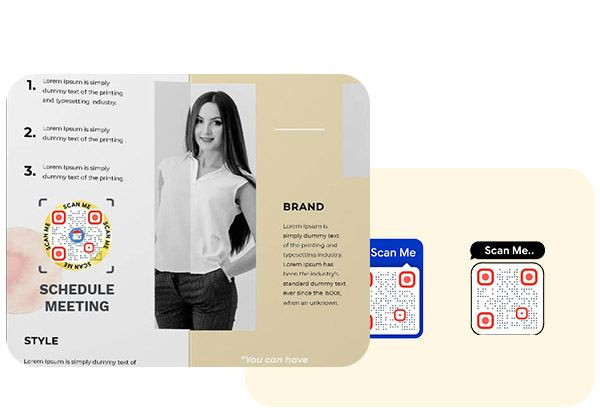
Create and Manage Google Calendar QR Codes with QRCodeChimp
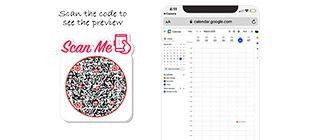
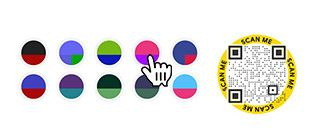
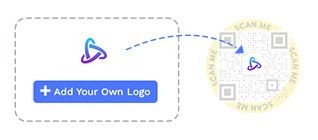
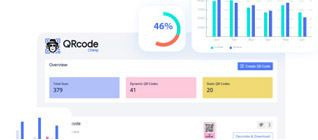
QRCodeChimp offers best-in-class features for creating and tracking Google Calendar QR codes. The key features of our solution are:
Who Should Use a Google Calendar QR Code?
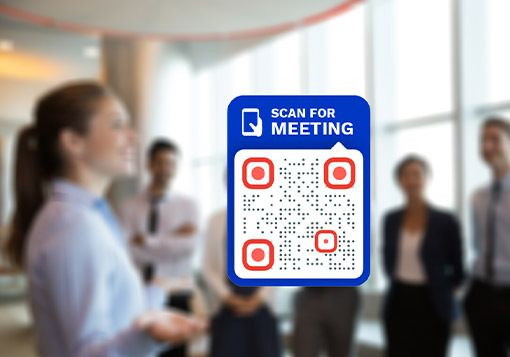
A Google Calendar QR code can be helpful for:

How to Get More Scans on Your Google Calendar QR Code
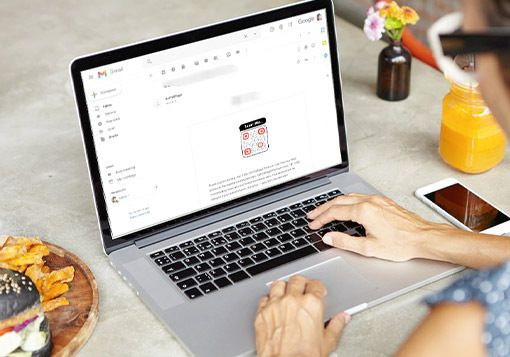
If you want more people to view your Google Calendar, you'll need to encourage people to scan your Google Calendar QR code. Here's how to get more scans:
Ensure seamless scanning
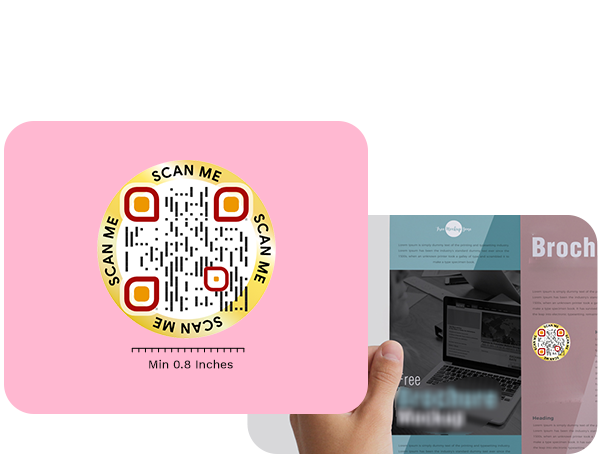
Print a QR code of at least 0.8 x 0.8 inches so that it's easy to scan. You can increase your Google Calendar QR code's size depending on your requirements.
Focus on the design and look
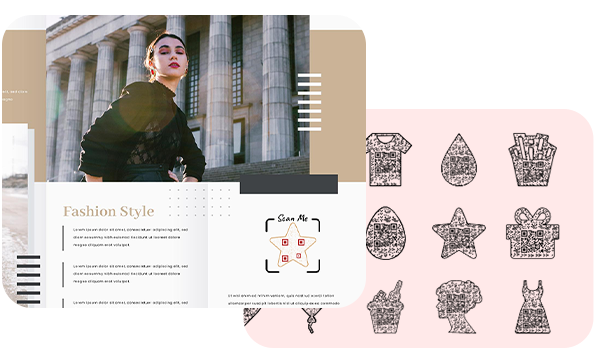
Create an exciting QR code that grabs users' attention. Use unique shapes and colors to give your Google Calendar QR code a compelling look.
Create a dynamic Google Calendar QR code
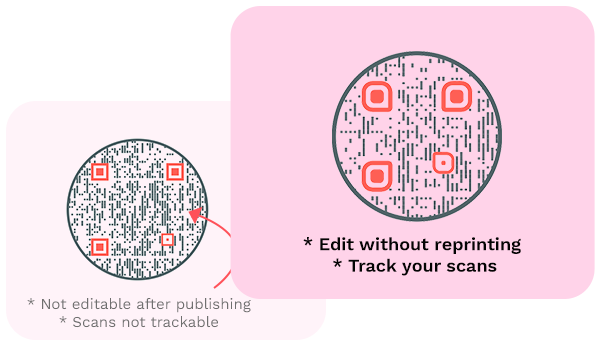
Make a dynamic Google Calendar QR code so that you can change the calendar URL without reprinting the code. Also, you can track the scans of dynamic QR codes.
Use CTAs
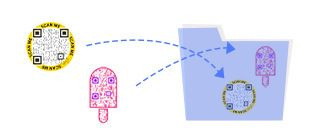
Boost scan rate by including a call to action (CTA) with your QR codes. With QRCodeChimp, you can choose from 100+ stickers with CTAs.
Frequently Asked Questions
- How to create a Google Calendar QR Code?
- Why should I use a Google Calendar QR code?
- Why is sharing a Google Calendar QR code better than sharing a URL?
- Can I change the calendar URL after creating a Google Calendar QR code?
- Can I create a QR code for an entire Google Calendar?
- Does scanning the QR code automatically add an event?
- Why is sharing a Google Calendar QR code better than sharing a URL?
- Can I change the calendar URL after creating a Google Calendar QR code?
- Do I need a dynamic QR code when I update an event?
- Can I use a link to a private Google Calendar?
- Does the Google Calendar URL need to be publicly accessible?
Frequently Asked Questions
How to create a Google Calendar QR Code?
Follow these steps to create a Google Calendar QR code:
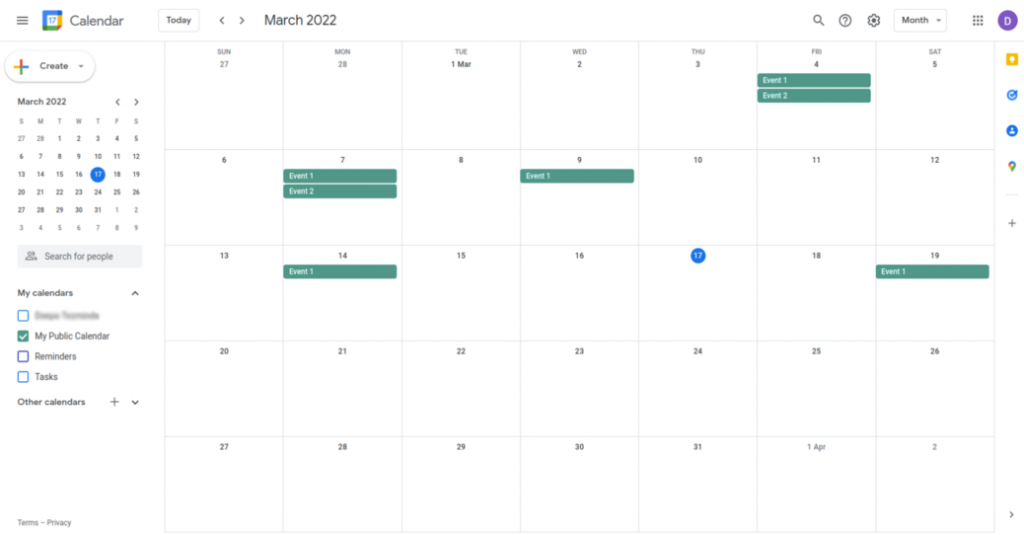
Step 2: Click on Options of Calendar
Hover on the calendar name under the 'My calendars' section and click on the Options (3 dots) icon.
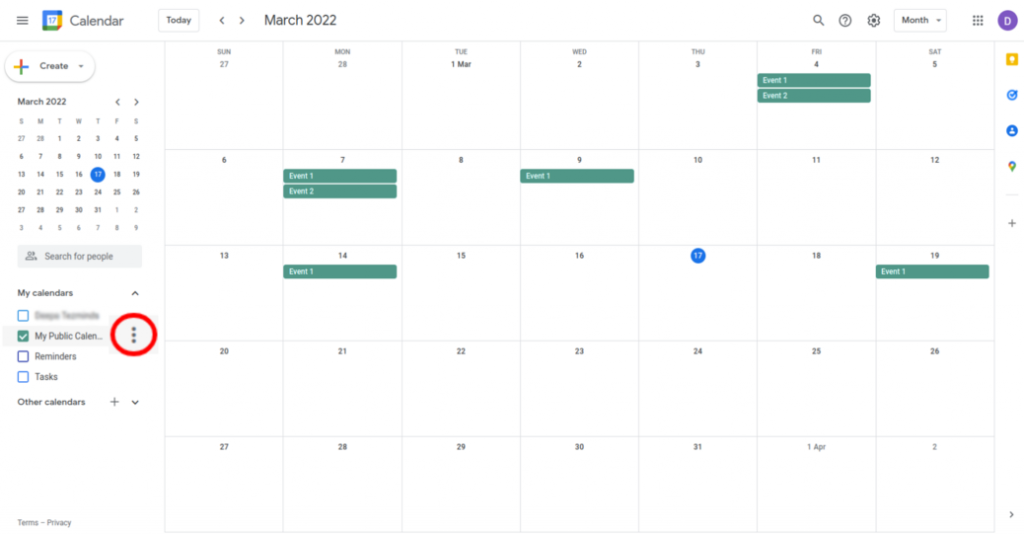
Step 3: Select Settings and Sharing
Click on 'Settings and sharing.'
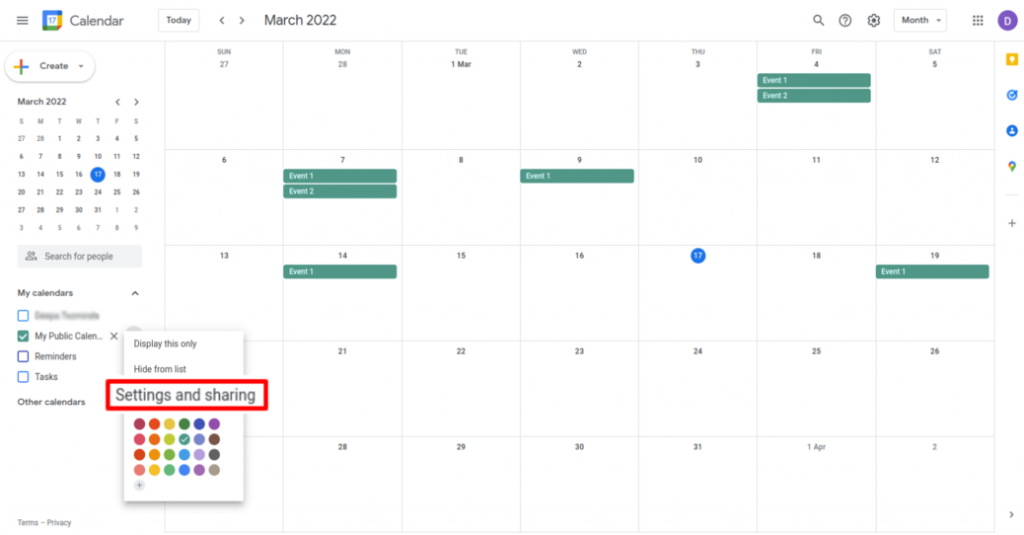
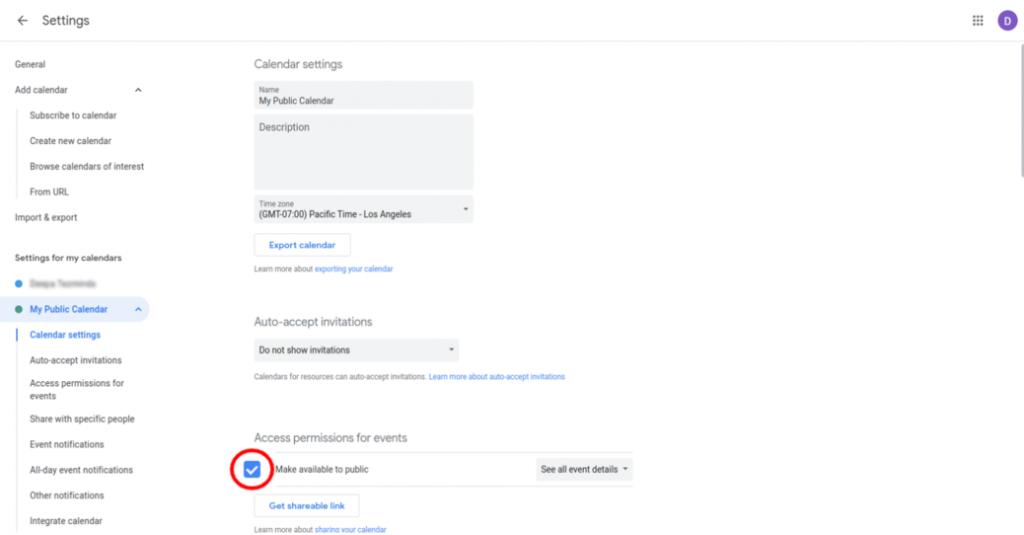
Step 4: Provide Public Access
Select the 'Make available to public' checkbox under 'Access permissions for events' and click on 'OK' in the 'Warning' popup.
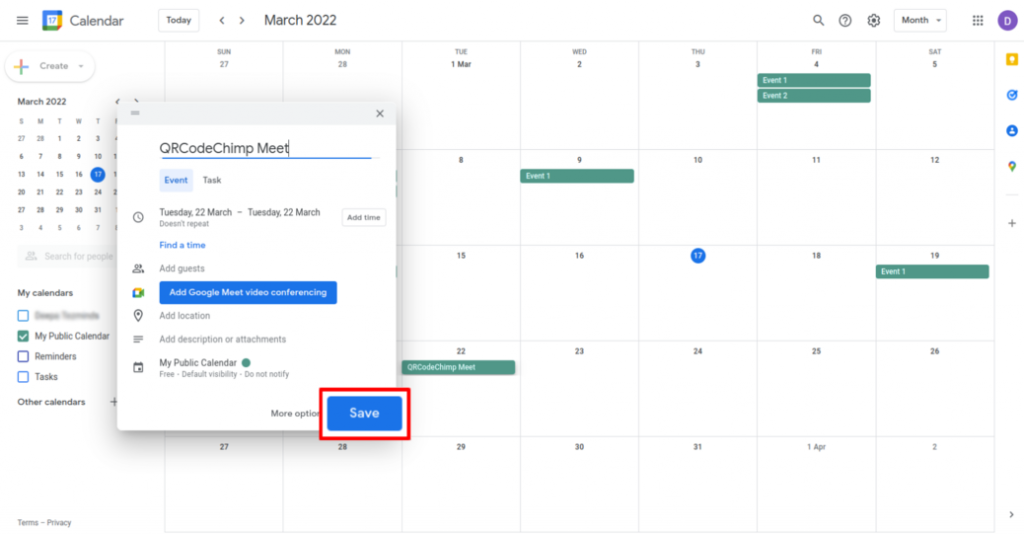
Step 5: Create the Event
Create and save the event in this calendar.
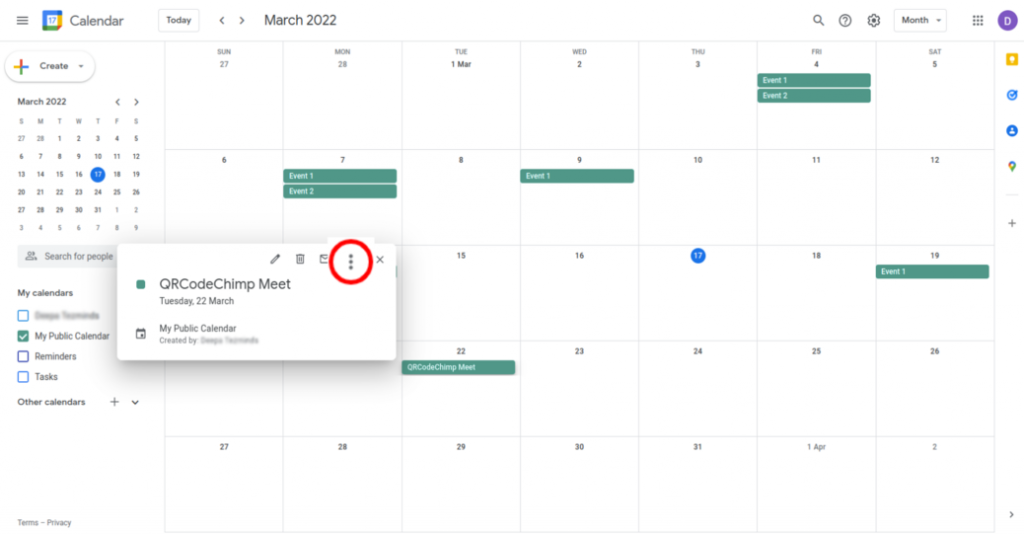
Step 6: Select Created Event, Click Options
Click on the created event and click on the 'Options' (3 dots) icon.
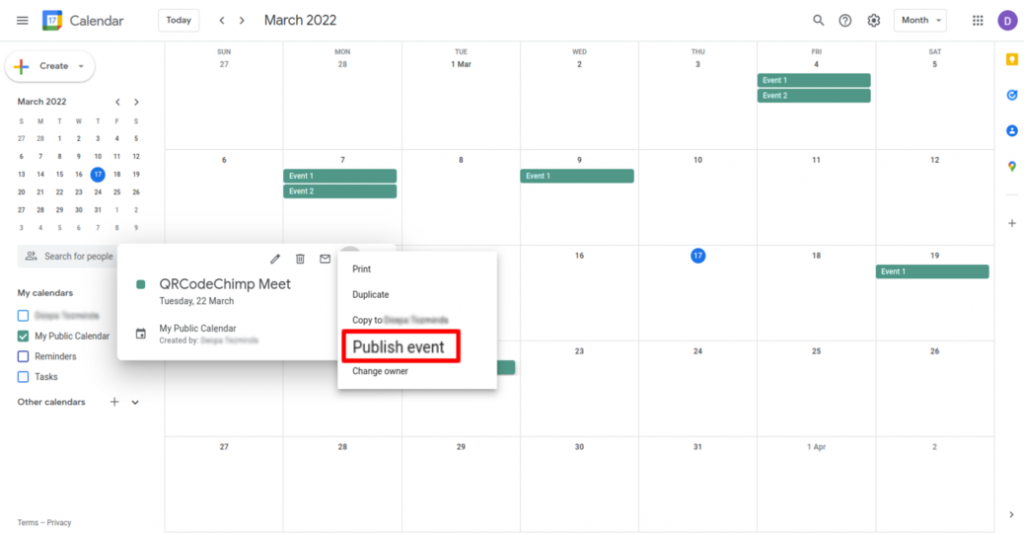
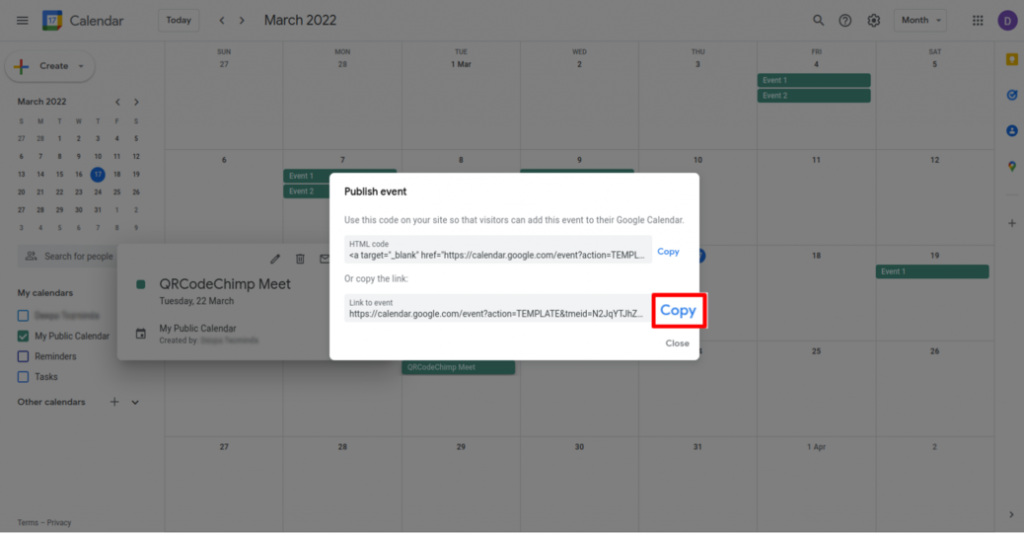
Step 7: Publish the Event
Click on 'Publish event.'
Step 8: Copy the Link
Copy the 'Link to event.'
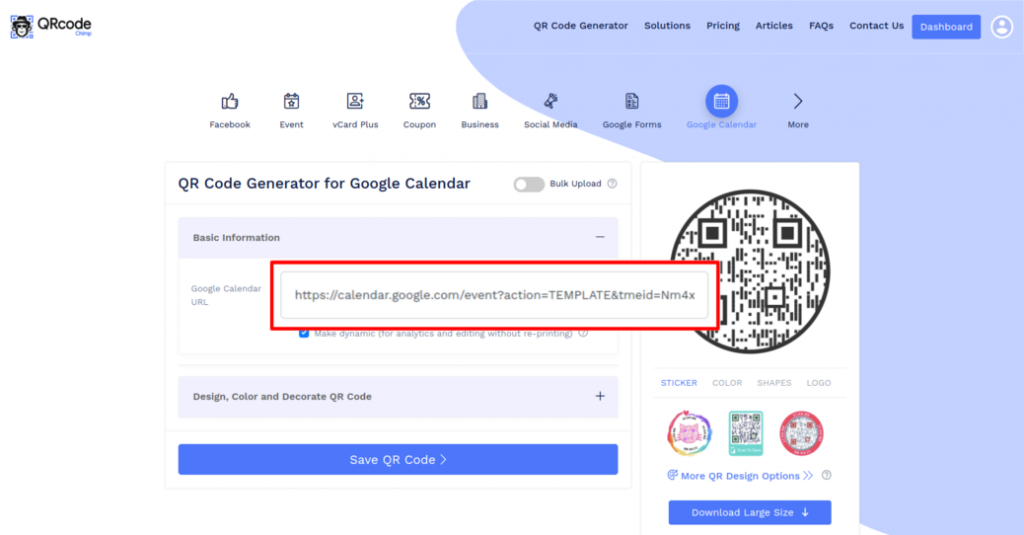
Step 9: Paste the Copied Link
Paste the copied link in the 'Google Calendar URL' field of QR Code Generator for Google Calendar.
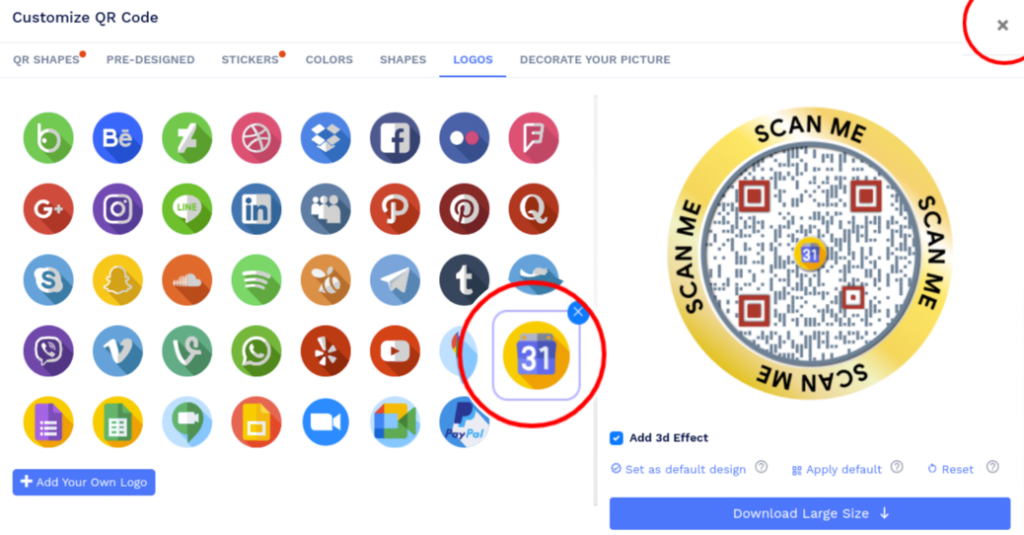
Step 10: Design Your QR Code
Click on 'Design Color and Decorate QR Code' to customize your QR Code design (ex: adding color, shape, calendar logo).
Note: Click on the 'x' icon of the 'Customize QR Code' popup to save changes.
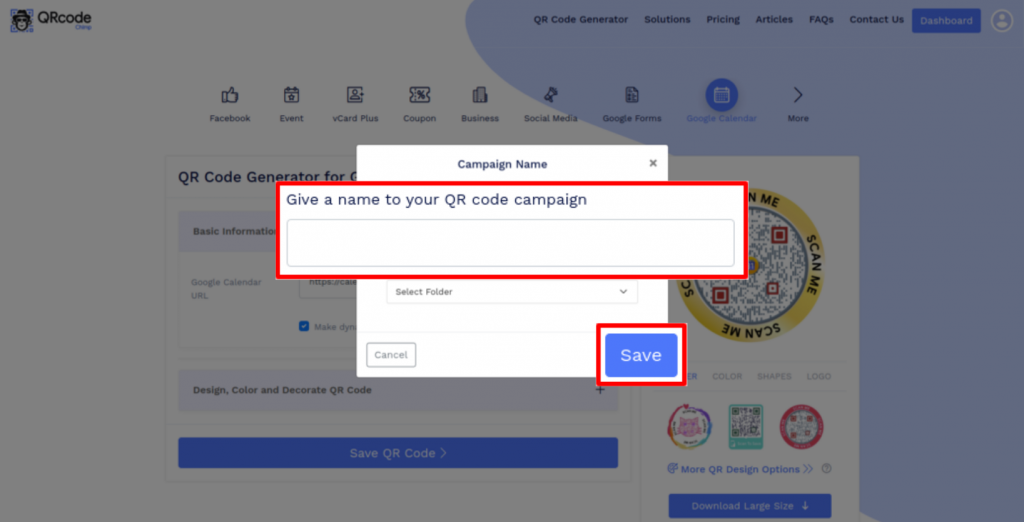
Step 11: Save and Download
Save the QR Code by clicking on the 'Save QR Code' button, entering the QR name, and then clicking on 'Save.'
Note: Make sure to scan your QR Code from different devices (iOS and Android) before printing for production.
Why should I use a Google Calendar QR code?
A Google Calendar QR code allows you to share a Google Calendar event or calendar with a large number of people. They can scan the code to view the information available through the linked URL.
Why is sharing a Google Calendar QR code better than sharing a URL?
A Google Calendar QR code carries the calendar event URL, so sharing it is the same as sharing the URL. However, you can also print a Google Calendar QR code on offline channels like newspapers to reach a broader audience.
Can I change the calendar URL after creating a Google Calendar QR code?
Yes, you can change the calendar URL without reprinting if you create a dynamic Google Calendar QR code. However, if you make a static code, you'll need to reprint it if you change the URL.
Can I create a QR code for an entire Google Calendar?
Yes. Make sure the calendar has the appropriate Google Calendar sharing permissions.
Copy an accessible link for the calendar and paste it into the Google Calendar URL field. You can use a public calendar URL or another calendar link that your intended audience has permission to open.
Does scanning the QR code automatically add an event?
No. Scanning the QR code opens the Google Calendar URL you entered.
Depending on the link and the options available on the opened page, visitors may be able to view the event, save it to their calendar, or subscribe to the calendar.
Why is sharing a Google Calendar QR code better than sharing a URL?
A Google Calendar QR code carries the calendar or event URL, so sharing it is the same as sharing the URL.
However, you can also print a Google Calendar QR code on offline channels like posters, brochures, invitations, and newspapers. People can scan the code instead of manually typing a long URL.
Can I change the calendar URL after creating a Google Calendar QR code?
Yes, you can change the calendar URL without reprinting if you create a dynamic Google Calendar QR code.
If you create a static code, you’ll need to create and print a new QR code when the destination URL changes.
Do I need a dynamic QR code when I update an event?
Not if the Google Calendar URL remains the same.
When you update information within the same linked event or calendar, people can view the latest available information when they open the URL again.
You need a dynamic Google Calendar QR code when you want to replace the destination with a different URL without reprinting or when you want to track scans.
Can I use a link to a private Google Calendar?
You can create a QR code for any URL, but people must have permission to access the linked calendar.
If the calendar or event is restricted, they may need to sign in with an authorized Google account. The QR code does not bypass Google Calendar permissions.
Does the Google Calendar URL need to be publicly accessible?
Not necessarily. It needs to be accessible to the intended audience.
A public link can be opened by anyone with access to it. A restricted link works only for people who have the required Google Calendar permissions.
Hear What Our Customers Have to Say!